How to Create Your Own Exchange Widget with the LetsExchange Constructor: a Step-by-Step Guide

LetsExchange’s partner can use its exchange widget. This is a comfortable and beneficial tool that can be used by:
To facilitate the widget setup, we have developed a comfortable and easy-to-use widget constructor. Now, you can set up your widget as you wish, it is easy even if you don’t have any programming skills. The constructor helps to make a widget that perfectly suits your business needs.
Setting up the Widget in the Sidebar
You can set up the widget in the sidebar to ensure it complies with your requirements. There, the following options are available.
General Settings
In the General settings bar, you can set up the rate, default coins for sending and receiving, the minimum amount to send, the number of supported coins, customize the widget content, activate or deactivate various options, and set up the DEX.
Fixed, Market Rate, or a Single Rate Option
fixed market rate single option You can choose whether there will be a and , or a will be offered only.
On default, your widget enables users to pick a market or a fixed rate. But if you want, you can enable your users to swap coins at a fixed or a market rate only, just pick the option you want in the widget.
If you pick a market rate only, your users will be able to make swaps at the rate that is valid at the exchange moment. In such a case, the sum received may be different from the sum to get displayed at the start of the exchange.
You Get If a fixed rate is picked, your users will be getting an exact sum that is displayed in the field in the widget at the start of the exchange.
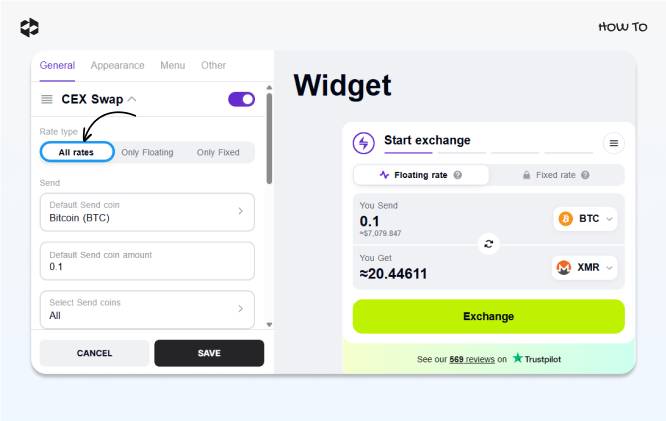
All rates Here is how you set up in the widget.
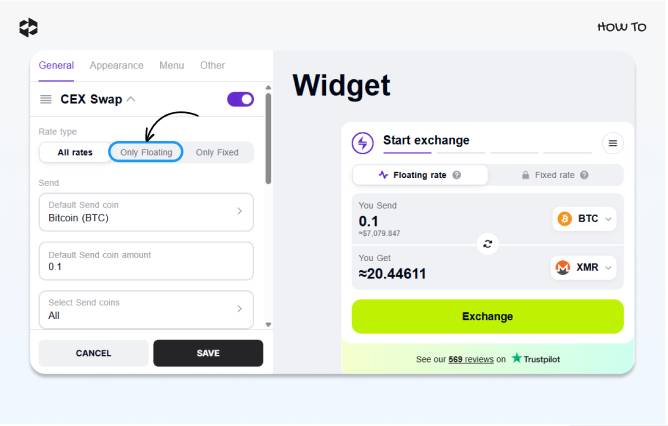
Only Floating To select a floating rate only, pick the option. Your choice will be displayed in the widget.
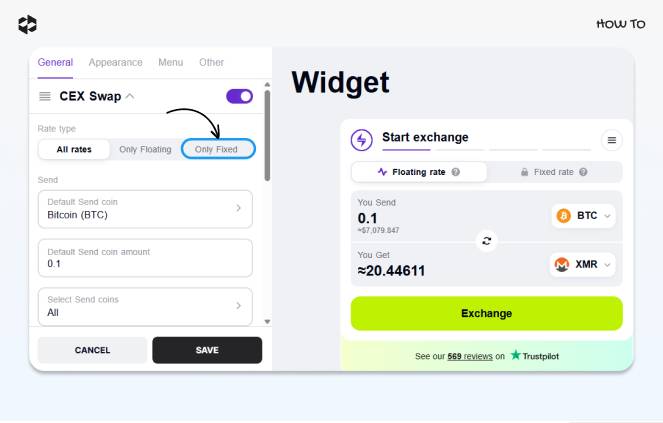
Only Fixed To select a fixed rate only, pick the option. The choice will also be displayed in the widget.
Default Coin for Sending
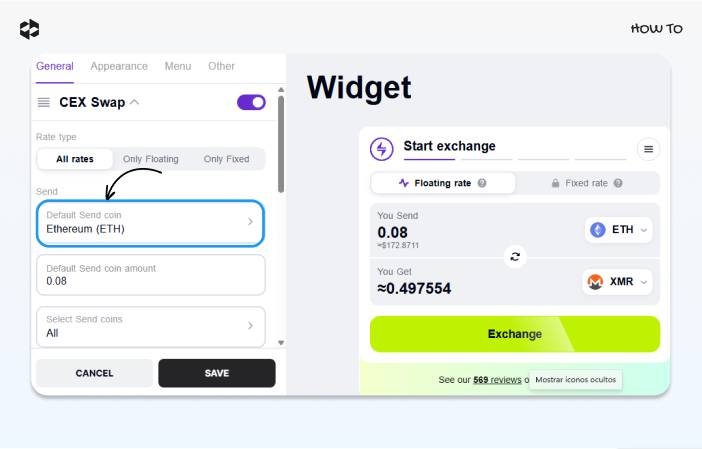
default coin for sending You can change the . It will help you to increase the conversion rate if you work with a specific coin community.
The widget enables you to search for the needed coin by its short name (e.g., ETH), or its long name (Ethereum).
To set up the needed default coin, perform the following steps:
- Default Send coin Сlick on the field.
- And choose the needed coin from the list.
- This choice will also be displayed in the widget.
The Minimum Amount for Swapping
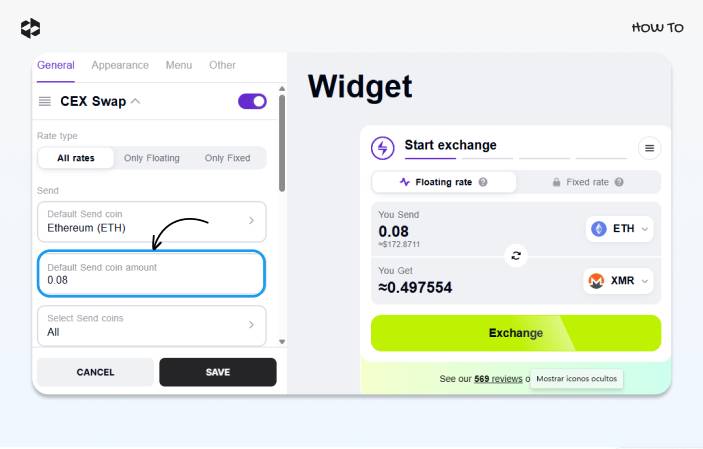
The minimum sum for swapping allows you to decide what minimum amounts are permitted for your users to exchange. For example, if you set up a low minimum amount, it will position your service as one aimed at all types of users. And on the contrary, if you set up a high minimum amount (e.g., 0.08 ETH), it will demonstrate that you are aimed at big players in the crypto industry.
minimum sum for swapping Default Send coin The can be set by typing in the amount in the amount field:
The Number of Coins
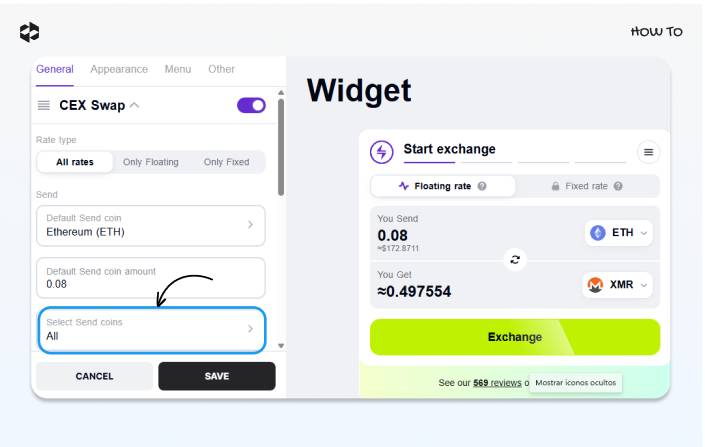
By default, your users will be able to swap all the 5,000+ coins and tokens supported by our platform. The number of coins is growing constantly.
But you can choose specific assets only. For example, you want to limit the choice by TOP-10 coins or just a couple of specific coins.
Select Send coins. To set the supported coins, click on the field And pick the needed coins from the list of 5,000+ coins and tokens supported by LetsExchange.
They all will be displayed in the sidebar.
Default Coin to Receive
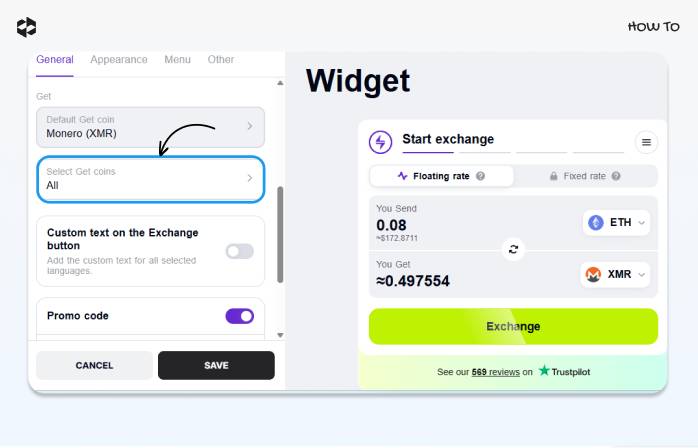
Default Get coin The default coin to receive can also be selected by clicking on the field and picking the needed coin.
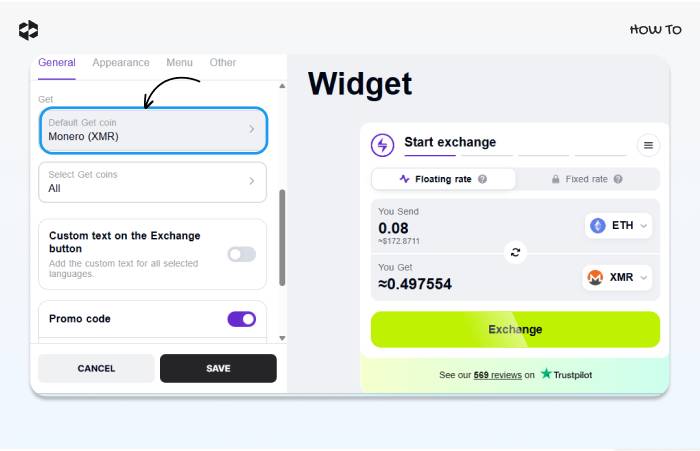
Select Get coins As well as the coins that can be purchased can be selected by clicking on the field and picking the needed coins. You can even pick one coin available for purchasing – this option is especially popular among the teams that work on the development of their own coin or token.
Content Customization
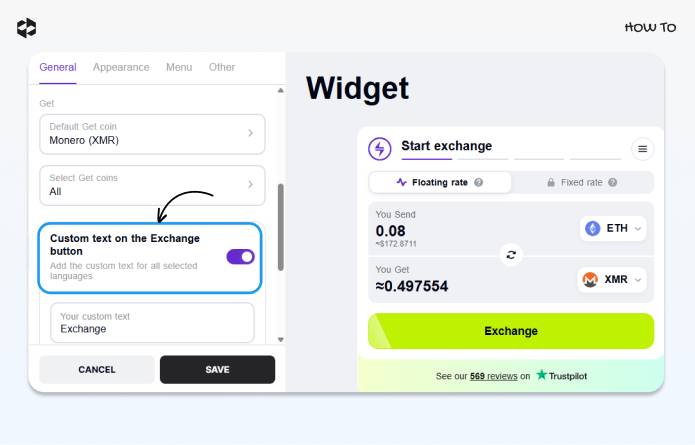
On All the content and translations are added to all the widget’s options automatically but now, you can change it to the options you believe will work better for you. To do so, move the toggle button in the position, and provide any custom text you want to have.
As an example, you can add the call to action to buy your asset – ‘Get [Coin Name]!’. Consider though that the text variant provided by you won’t be automatically translated into other languages, it will be displayed in the same way as you typed it in.
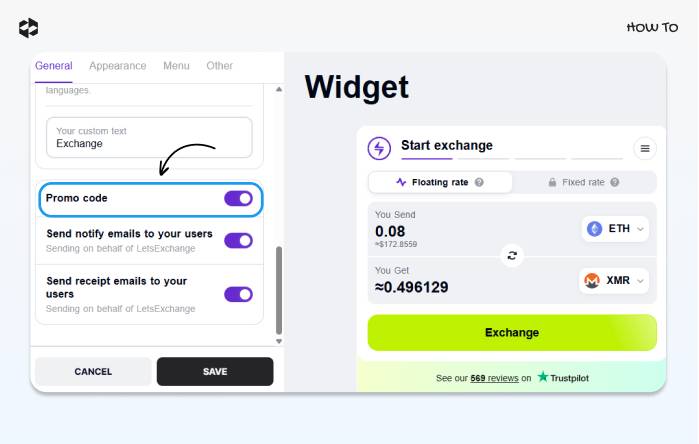
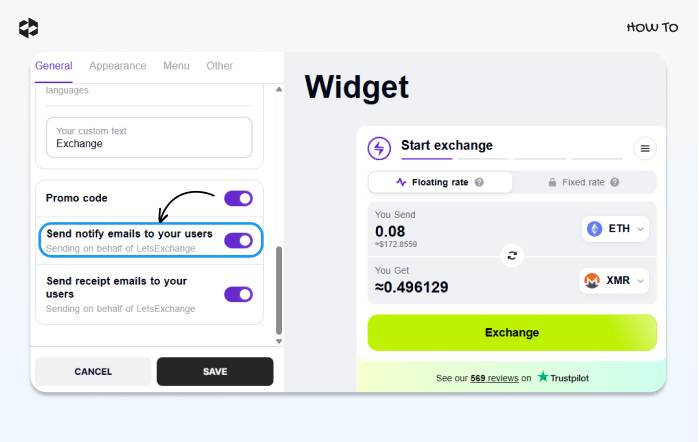
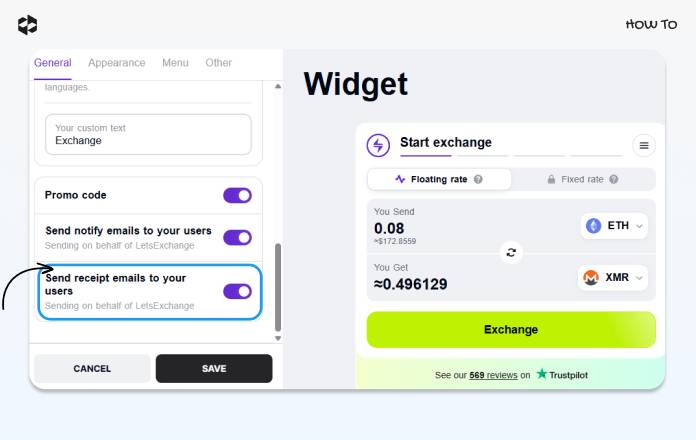
Activating/Deactivating the Options Promo Code, Agreement with Terms and Conditions, Send Notify Email to Your Users, Send Receipt Emails to Your Users
You can activate or deactivate such options as Promo Code, Agreement with Terms and Conditions, Send notify email to your users, Send receipt emails to your users by moving a toggle button in the On or Off position.
Widget Appearance
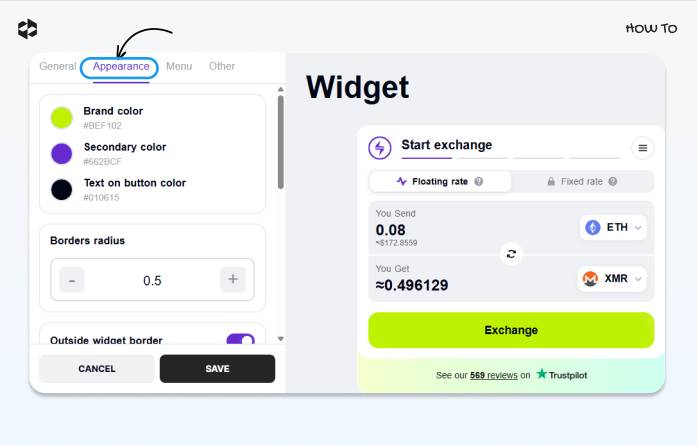
Appearance You can also change the widget design to match your business’ branding. To do so, click on , and proceed with the options you need.
Widget Color
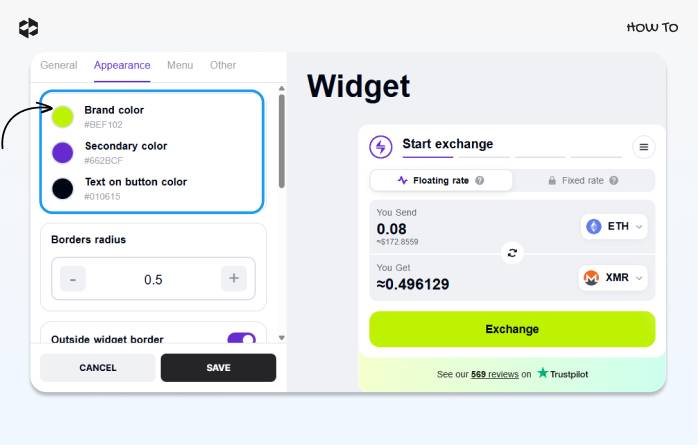
You can change the widget color (brand color), set up the secondary color and the text on the button color:
Border Radius
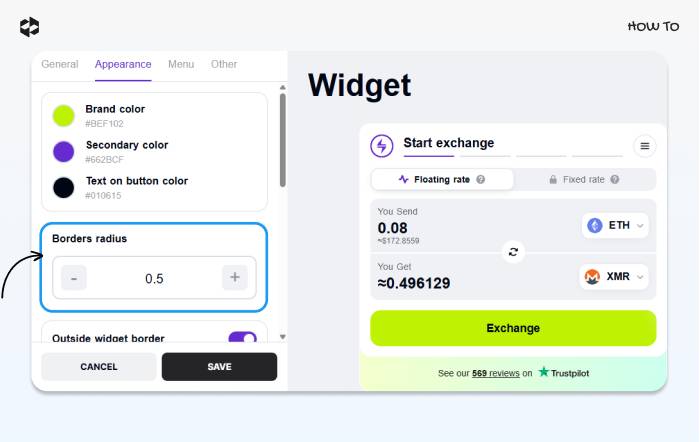
The border radius can be set up by typing in the border radius value in the respective field or adjusting the value with the “+” and “-” buttons:
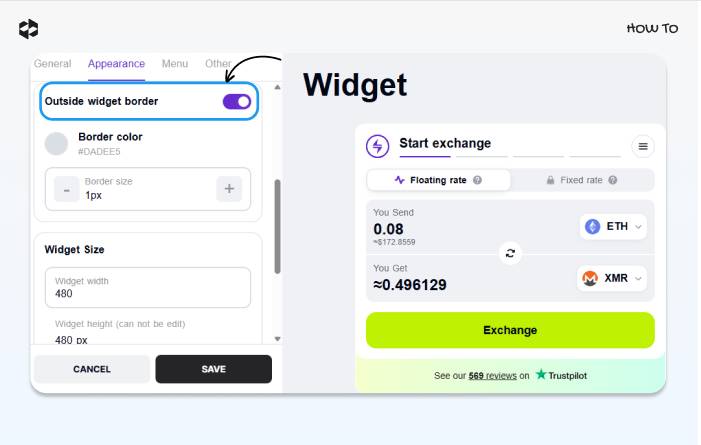
Outside Widget Border
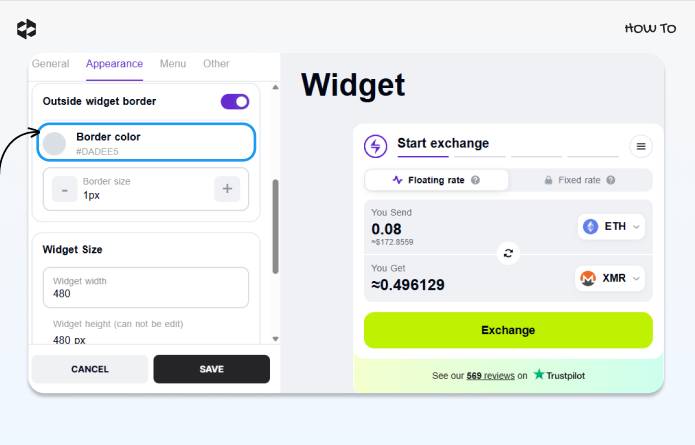
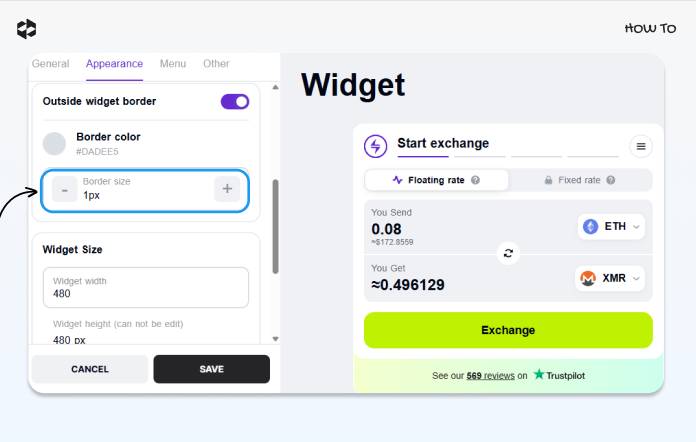
You can also set up the external widget border, and set up its colour and size.
off/on Turn the external widget border and set up its color:
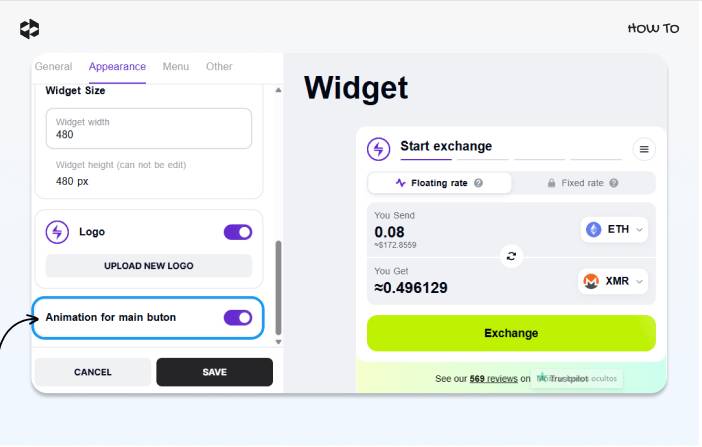
To set up the widget size, provide the needed widget width in a respective window.
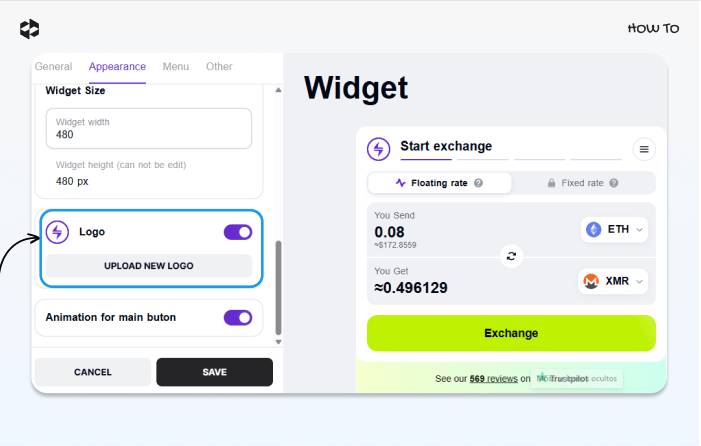
Logo
On/Off You can activate or deactivate the logo option by moving the toggle button in the position, and uploading your logo.
On/Off Finally, you can choose whether you want the animation for the main button by moving the toggle button to the position.
Widget Menu
Menu In the section, it is possible to:
- activate/deactivate the language setup option
- activate/deactivate the recommended wallets option
- activate/deactivate the support option
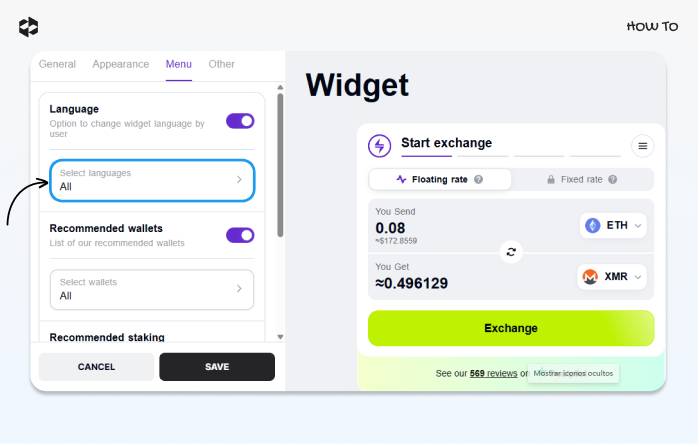
Language
Select languages You can set up in which language your widget will be displayed. To do so, click on the field, and from the window that appears, choose the languages you need.
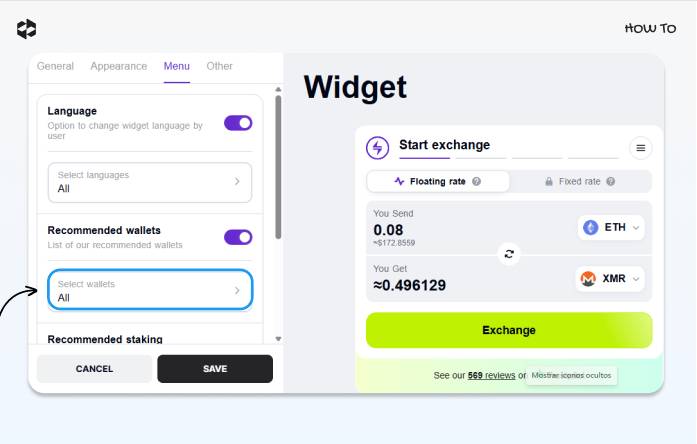
Recommended Wallets
On You can also choose whether you want the list of recommended wallets to be displayed or not, and select the wallets you want to be displayed. To do so, make sure the toggle button Recommended wallets is in the position, and pick the needed wallets by clicking on the Select wallets field, and activating them in the list.
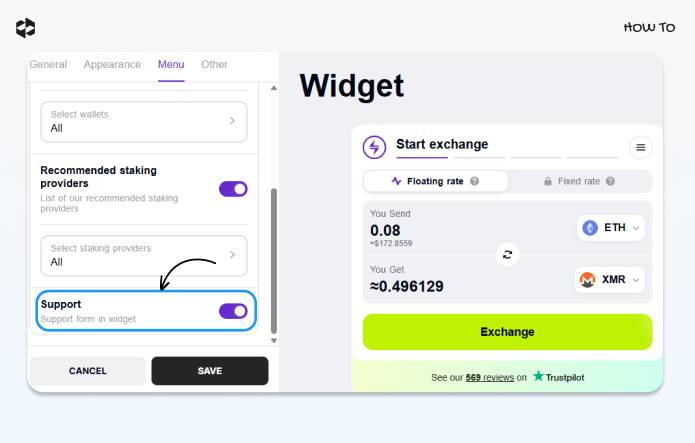
Support form
You can activate or deactivate the support form in the widget.
Other
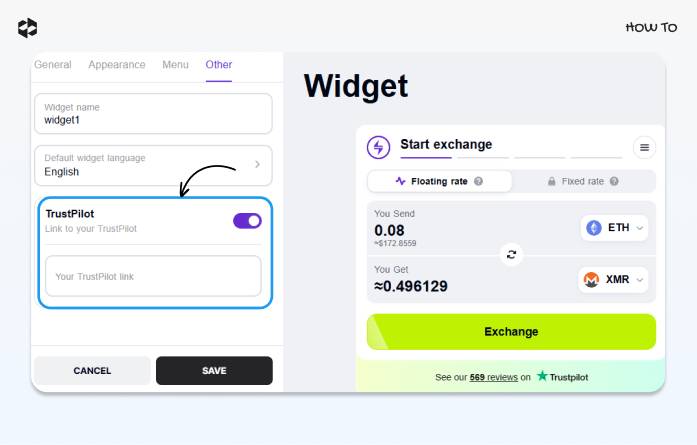
In the Other tab, you can choose if you want to give your users access to your TrustPilot account to leave feedback.
Some More Information
You can create as many widgets as you need in your account. To prevent them from mixing up, you can give them names or change the existing names.
If you use several languages, you can set up a default language. Your users see the English language initially but you can easily change the language.
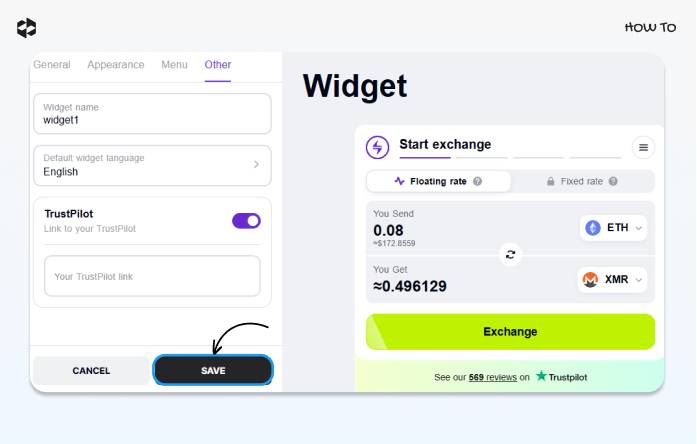
Save Don’t forget to save all changes by clicking the button.
You will be displayed the embed code. Use it to integrate the widget on your online resource.
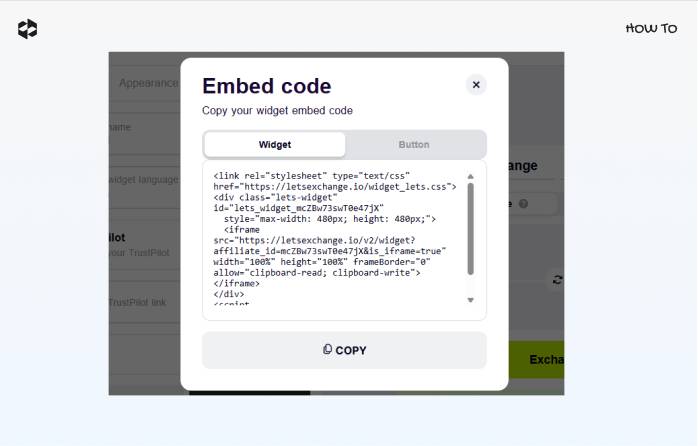
That’s it, your widget is ready for swaps!


